Learn how to configure and use Wake-on-LAN in Magic Packet, and get answers to common questions.
Wake-on-LAN
About Wake-on-LAN technology
Learn how Wake-on-LAN works and what you need to get started.
Wake-on-LAN (WOL) is a network standard that lets you power on a computer remotely by sending it a special message called a magic packet — even when the computer is turned off or sleeping.
A small magic packet travels across your local network and wakes the sleeping PC — no IP needed, only its MAC address.
How it works
The magic packet — Magic Packet sends a small network packet that contains the target computer's MAC address repeated 16 times.
The network card listens — Even when the computer is off or asleep, its wired network card stays in a low-power mode and keeps listening for this packet.
The computer powers on — When the card sees its own MAC address inside the packet, it tells the motherboard to power the system on.
What you need
Requirements for Wake-on-LAN to work
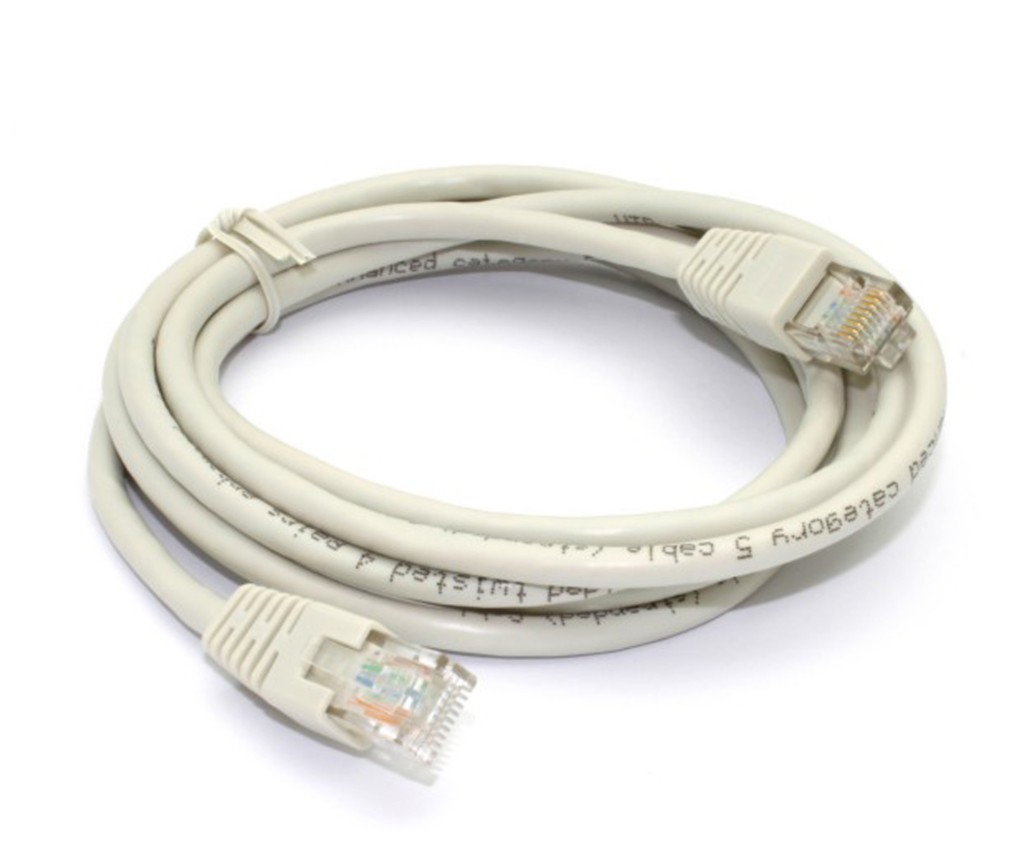
A wired Ethernet connection. Most Wi-Fi adapters do not support Wake-on-LAN.
Wake-on-LAN enabled in BIOS/UEFI (sometimes named “Power On by PCI-E” or “WOL”).
Wake-on-LAN enabled in the operating system network adapter settings.
The computer stays connected to power with the network cable plugged in.
Both devices on the same local network, or a router configured to forward the packet.
The correct MAC address of the wired adapter entered in the host settings.
On the same network the magic packet is sent as a broadcast, so you usually don't need the computer's IP address — only its MAC address.
Step-by-step guide to enabling Wake-on-LAN on a Windows PC.
To wake a Windows PC with Magic Packet you enable Wake-on-LAN in three places: the BIOS/UEFI, the network adapter in Windows, and Windows power options. The PC must stay plugged into power and connected by Ethernet cable — most Wi-Fi adapters don't support WOL.
Step 1 · BIOS/UEFI
Enable wake on the motherboard
Enter BIOS/UEFI — Restart the PC and press the BIOS key right after power-on: usually Del (ASUS, MSI, Gigabyte), F2 (Dell, Lenovo), or F12 / Esc on some laptops. The exact key is shown on the boot screen.
Find the Wake-on-LAN option — Look for Wake-on-LAN, Power On by LAN, or PME Event Wake Up — usually on the Power, Advanced, or APM Configuration tab.
Enable it — Set the option to Enabled (or Automatic).
Extra options on ASUS / Gigabyte / ASRock — Many boards also need Advanced → APM → Power On by PCI-E set to Enabled, and ErP set to Disabled. With ErP enabled the board can cut power to the network card while off, which kills WOL. Save and exit with F10 → Yes.
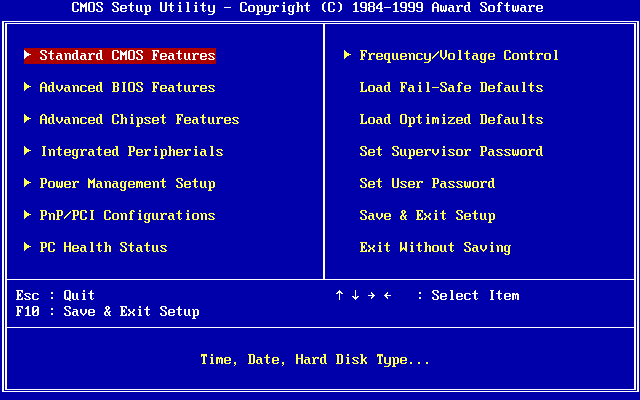
A typical BIOS/UEFI menu. The exact name and tab of the Wake-on-LAN option vary by motherboard.
Image: Award Software, public domain, via Wikimedia Commons
Step 2 · Windows
Allow the adapter to receive Magic Packet
Open Device Manager — Press Win + X → Device Manager, expand Network adapters, find your Ethernet adapter (not Wi-Fi), then right-click it and choose Properties.
Enable Wake on Magic Packet — On the Advanced tab scroll down to Wake on Magic Packet and set it to Enabled.
Check Power Management — On the Power Management tab enable Allow this device to wake the computer and Only allow a magic packet to wake the computer (if shown).
Disable Fast Startup — Open Control Panel → Power Options → Choose what the power buttons do → Change settings that are currently unavailable, then uncheck Turn on fast startup. It can block WOL after a full shutdown; Sleep and Hibernate are usually more reliable.
⚠️No Wake on Magic Packet in the list? The adapter or its driver may not support WOL — update the driver from the motherboard or adapter vendor. USB Wi-Fi adapters usually don't support it.
💡On Realtek adapters, also enable Shutdown Wake-On-Lan and disable Green Ethernet / Energy-Efficient Ethernet (EEE). Otherwise WOL often stops working after a full shutdown or a long sleep.
Step 3 · Find the MAC address
You'll enter this in Magic Packet
Windows Settings — Open Settings → Network & Internet → Ethernet and read the Physical address (MAC), for example AA-BB-CC-DD-EE-FF.
💻Alternatively, run ipconfig /all in Command Prompt — the Physical Address of your Ethernet adapter is the MAC.
If it doesn't work
Checklist and common fixes
The network card LEDs should stay lit when the PC is off. If not, check BIOS (ErP, PCI-E), the cable, and the router port.
Confirm Wake-on-LAN is Enabled in BIOS (plus Power On by PCI-E on many boards).
Confirm Wake on Magic Packet is enabled on the adapter in Device Manager.
Make sure Fast Startup is turned off.
Use the Ethernet MAC address, not the Wi-Fi one.
Keep the PC wired — USB and Wi-Fi adapters usually don't support WOL.
Worked before, then stopped? Update the network driver and BIOS, or change the router LAN-port speed.
On your iPhone/iPad, allow Magic Packet to access the local network in iOS Settings (and WLAN network access on Chinese-region devices) — otherwise the magic packet can't be sent.
If the LEDs stay dark while the PC is off, try switching the router's LAN port from 1000 Mbps auto-negotiation to 100 Mbps full duplex. On some router and network-card combos this brings WOL back. Leave the card itself on automatic speed.
Once everything is set, add the PC in Magic Packet with its MAC address and wake it from the app. To wake it over the internet you'll also need router port forwarding (UDP 9) and a static local IP with a public IP or DDNS.
Find and enter the correct MAC address for your host.
Wake-on-LAN needs the MAC address of the adapter that will receive the magic packet. Always use the wired Ethernet adapter — the one configured for WOL. A MAC address looks like 1C:83:41:FF:E9:03.
⚠️If the computer has several adapters (Ethernet, Wi-Fi, virtual), pick the wired Ethernet one that stays powered while the PC is off.
Windows
Find the Ethernet MAC address
Settings — Open Settings → Network & Internet → Ethernet and read the Physical address (MAC), for example AA-BB-CC-DD-EE-FF.
💻Alternatively, run ipconfig /all in Command Prompt — the Physical Address of your Ethernet adapter is the MAC.
Choose the right IP address or broadcast address for WOL packets.
This is the host's WOL Address in Magic Packet — the address the magic packet is sent to. On the same local network a broadcast address is the most reliable choice, because a powered-off computer has no active IP address.
On your local network the packet is sent as a broadcast to 255.255.255.255 — the router passes it to every device on the subnet, so the sleeping PC is reached by its MAC address, no IP needed.
✅If unsure, keep the default 255.255.255.255. It works on most home networks.
Which address to use
Three options for the WOL Address field
Global broadcast (recommended) — Use 255.255.255.255. It reaches every device on the local network and needs no extra setup. This is the default.
This works only inside your local network. It will not work if you want to wake the PC over the internet — for that use your public IP or DDNS with port forwarding.
Subnet broadcast — Use your network's broadcast, for example 192.168.1.255. Choose this if the global broadcast is filtered by your router — it targets only your subnet.
Host IP or hostname — You can also enter the computer's IP address or hostname, but on the same network a broadcast is more reliable for a powered-off PC.
Find your IP and subnet
To build the subnet broadcast address
Windows — Open Settings → Network & Internet → Ethernet and read the IP address and Subnet mask (or run ipconfig /all).
macOS — Open System Settings → Network → Ethernet → Details → TCP/IP for the IP Address and Subnet Mask (or run ifconfig en0).
Linux — Run ip addr show and read the inet line, for example 192.168.1.50/24.
💡On a common /24 network (mask 255.255.255.0) the broadcast is the first three numbers of the IP followed by 255, e.g. 192.168.1.255.
Good to know
Tips for choosing the address
On the same network, 255.255.255.255 is the simplest choice and is the default.
The broadcast depends on the subnet mask: a /24 network uses x.x.x.255.
To wake over the internet, enter your public IP or DDNS name and set up router port forwarding (UDP 9).
Prefer not to open ports? Use a VPN into your home network, then wake the PC with the local broadcast 255.255.255.255 as if you were at home.
The port stays the same (default 9) — only the address changes.
Enter the address in the host's WOL Address field. If unsure, keep the default 255.255.255.255.
Wake-on-LAN only works when every part of the chain is set up correctly. If the computer doesn't turn on, one of the requirements below is usually missing.
Wake-on-LAN almost always needs a wired Ethernet connection. Most Wi-Fi and USB adapters don't keep the network card powered while the PC is off, so they never receive the magic packet.
Use a wired Ethernet (RJ45) cable — most Wi-Fi and USB adapters don't support Wake-on-LAN.
Connect the PC to the router with an Ethernet cable.
The card's LEDs should stay lit when the PC is off — that means it's still listening. If they're dark, WOL isn't active.
Keep the PC plugged into power. WOL can't work if the power cable is unplugged.
Common causes
Check each one
Wake-on-LAN isn't enabled in BIOS — set it to Enabled/Automatic, plus Power On by PCI-E and ErP off on many boards.
Wake on Magic Packet is off in Windows — enable it on the adapter in Device Manager.
Fast Startup is on — turn it off; it blocks WOL after a full shutdown. Sleep and Hibernate are more reliable.
Wrong MAC address — use the wired Ethernet adapter's MAC, not the Wi-Fi one.
Wrong WOL address — on the same network use the broadcast 255.255.255.255.
Different networks — your phone and the PC must be on the same local network, unless you set up internet wake.
Driver, firmware or BIOS — update both the network driver and the motherboard BIOS if WOL worked before and then stopped. This often fixes Realtek adapters and wake failures after a long sleep or full shutdown.
Wakes for a few minutes, then stops — the router's ARP cache ages out and forgets the powered-off PC. Add a static ARP entry (IP → MAC) on the router so it keeps reaching the PC.
Check your iPhone or iPad
The app must be allowed on the local network
Magic Packet sends the wake signal over your local network. If the app isn't allowed to use it, the magic packet never leaves your device.
Grant Magic Packet permission to access the local network in iOS Settings → Magic Packet.
On iPhones and iPads made for the Chinese region, make sure WLAN network access is enabled for the app.
Waking over the internet
If it works locally but not remotely
If WOL works on the same network but not from outside, you need router port forwarding (UDP 9) to the PC, a static local IP, and a public IP or DDNS.
Because a powered-off PC doesn't answer ARP, the router also needs a static ARP entry binding the PC's IP to its MAC — otherwise it has nowhere to deliver the forwarded packet.
A simpler and safer option is a VPN into your home network: connect your phone to the VPN, then wake the PC with the local broadcast 255.255.255.255 as if you were at home — with no ports exposed to the internet.
If the LEDs stay dark while the PC is off, try changing the router's LAN port from 1000 Mbps auto-negotiation to 100 Mbps full duplex. On some router and card combinations this restores WOL. Leave the card itself on automatic speed.
Learn how to use "On this network" and automatically discover hosts.
The “On this network” feature automatically discovers computers running Magic Packet Server in your local network.
Just follow these steps:
Install Magic Packet Server — Make sure Magic Packet Server is installed on the host. Automatic discovery is available starting from version 1.2.0.
Connect to the same network — Connect your device to the same local network as the host. Open Magic Packet and go to the “On this network” screen. The host should appear within a few seconds.
Select a host — Select the required host from the list. If the host has multiple network interfaces, choose the correct MAC address for Wake On LAN.
For Wake On LAN, select the MAC address of the wired network interface that is enabled and configured for Wake on LAN. You can change it later in the host settings.
Troubleshooting
If you encounter issues with the feature
⚠️Host not found
Check the following:
Make sure you have completed all the steps above.
mpserver and mpservice are running on the host
The firewall or antivirus is not blocking mpservice
Both devices are on the same network
If you use network segmentation, set up mDNS forwarding (5353/UDP)
Make sure you have granted the app permission to access local networks in iOS settings
For iPhones/iPads made for the Chinese region, make sure WLAN network access is enabled